

RXGAMES Guide
Cronus Zen PS5 Bypass
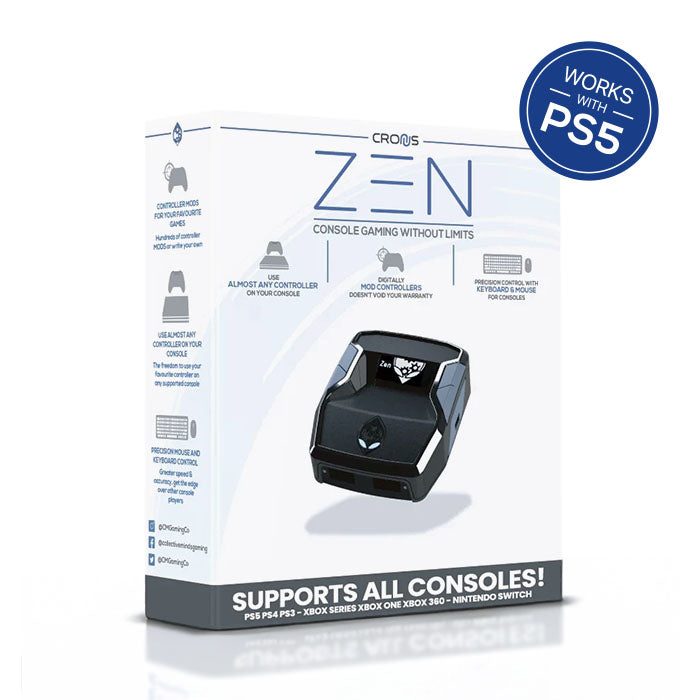
Compatible with all PlayStation 5 models as well as DualSense and DualSense Edge. This guide takes you step by step to a complete setup, including a video guide.
Set up the Zen yourself
Your Zen is new or empty and you set it up completely yourself.
Preconfigured by RXGAMES
GamePacks & Zen settings are already installed on delivery.
Important before you start
All settings on this page must be applied before you use a GamePack on the PS5. If even one setting is wrong, the GamePack will not work.
Also fully charge the DualSense controller, as the Zen may not provide enough power for charging.
Update firmware
Self setup onlyZen Studio Live runs directly in the browser on PC and Mac, without installation and always up to date. You need a Chromium browser such as Chrome or Edge (Safari and Firefox are not supported). The PS5 bypass requires Zen firmware 2.2.12 or higher to be installed.
-
In the status bar at the bottom of Zen Studio Live, click Update Firmware.
-
Hold down the blue reset button on the Zen and at the same time connect it via the top USB port (CONSOLE/PC) to the computer.
-
Release the button as soon as the Zen display shows "Zen Bootloader" and follow the wizard: select device → select firmware → flash.

Load the GamePack
Self setup onlyWith Zen Studio Live, you load your GamePack onto the Zen directly in the browser.

-
Connect the Cronus Zen via the right USB port (PROG) to your computer.
-
Open Zen Studio Live and click Connect Device. Select your Zen in the browser dialog.
-
Select your GamePack (e.g. under Top GamePacks or in the library) and click Send to slot.
-
In the Device Slots section, click Program and wait until the process is complete.
-
Disconnect the cable from the Zen. That's it, next up are the console settings.

PS5 console settings
RequiredOpen the settings menu via the ⚙️ icon at the top right of the PS5 screen and set the following eight items.
-
Enable Bluetooth
Accessories › General › Advanced Settings › Turn On Bluetooth
-
USB cable connection
Accessories › Controllers (General) › Communication Method › Use USB Cable
-
Set vibration intensity
Accessories › Controllers (General) › Vibration Intensity › Strong (Default)
Accessories › Controllers (General) › Trigger Effect Intensity › Strong (Default)
DualSense Edge: These settings are in the defaultProfile 1.
-
Adjust power saving
System › Power Saving › Set Time Until Controllers Turn Off › Don't Turn Off
System › Power Saving › Features Available in Rest Mode › Supply Power to USB Ports › Always
System › Power Saving › Features Available in Rest Mode › Enable Turning On PS5 from Network
-
Enable Remote Play
System › Remote Play › Enable Remote Play
-
Enable console sharing
Users and Accounts › Other › Console Sharing and Offline Play › Enable
-
Disable automatic updates
System › System Software › System Software Update and Settings › Download Update Files Automatically: Off + Install Update Files Automatically: Off
Why? New PS5 system software can temporarily break the bypass. Only update once compatibility is confirmed. We'll let you know in the shop.
-
Prevent updates in rest mode
System › Power Saving › Features Available in Rest Mode › Stay Connected to the Internet: Off
DualSense & DualSense Edge
CompatibilityVia USB, the Cronus Zen supports all features of the DualSense and DualSense Edge.

| Model | USB | Bluetooth |
|---|---|---|
| DualSense (CFI-ZCT1W) | ✓ Yes | Limited ¹ |
| DualSense Edge (CFI-ZCP1) | ✓ Yes | Limited ¹ |
| Feature (both models) | USB | Bluetooth |
|---|---|---|
| Adaptive triggers | ✓ Yes | ✕ No |
| Haptic feedback | ✓ Yes | ✕ No |
| Two-finger/swipe touchpad | ✓ Yes | ✓ Yes |
| Gyroscope | ✓ Yes | ✕ No |
| Controller microphone | ✓ Yes | ✕ No |
| Headset audio ² | ✓ Yes | ✕ No |
| Additional authentication controller | ✓ Not needed | not applicable |
¹ Bluetooth doesn't support adaptive triggers. BEAM GamePack features therefore require USB.
² Connect the headset to the A1-connected controller or connect a wireless headset directly to the PS5.
To play on the PS5, the DualSense or DualSense Edge must be connected to A1 on the left of the Zen.
Perform the PS5 bypass
RequiredThe bypass connects the Zen to the PS5 (from Zen firmware 2.2.12). Watch the video first. You can follow the steps below at the same time.
The complete bypass in the video. Every step is also written out below.
Required after every restart
You have to repeat these steps after every restart of the PS5 or the Zen, or after removing the controller.
-
Connect the Zen via its top USB-C port to the back of the PS5.
-
Connect the DualSense or DualSense Edge to the A1-labeled USB port (left) on the Zen.
-
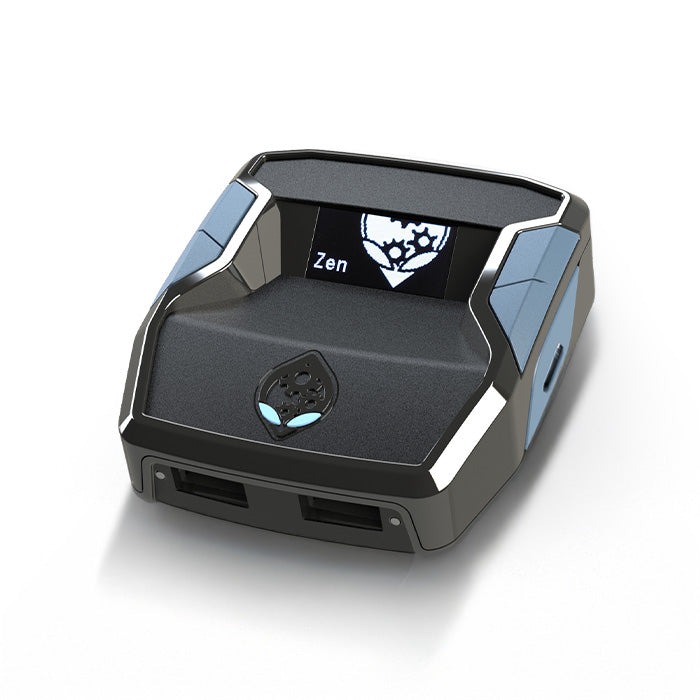
Turn on the console. The Zen alien logo must appear on the Zen display.
-
Go to ⚙️ Settings › Accessories › General and unplug the cable from the Zen's top USB-C port.
-
Turn the controller back on with the PS button and open Turn Off Accessories. Highlight the displayed controller only, without confirming it (just move the cursor onto it).
-
Plug the cable back into the Zen and hold right on the D-pad on the controller.
-
Wait for the automatic button spam until nothing moves on the screen anymore.
-
Activate a GamePack. If the console still responds to your inputs, the connection is established.
Tired of doing the bypass after every restart?
With the Cronus ZenLink WiFi module the Zen connects to the PS5 permanently and natively. The bypass is no longer needed at all; it's the official way from Cronus for the PlayStation 5.
To the ZenLink WiFi module →DualSense Edge: stick curve
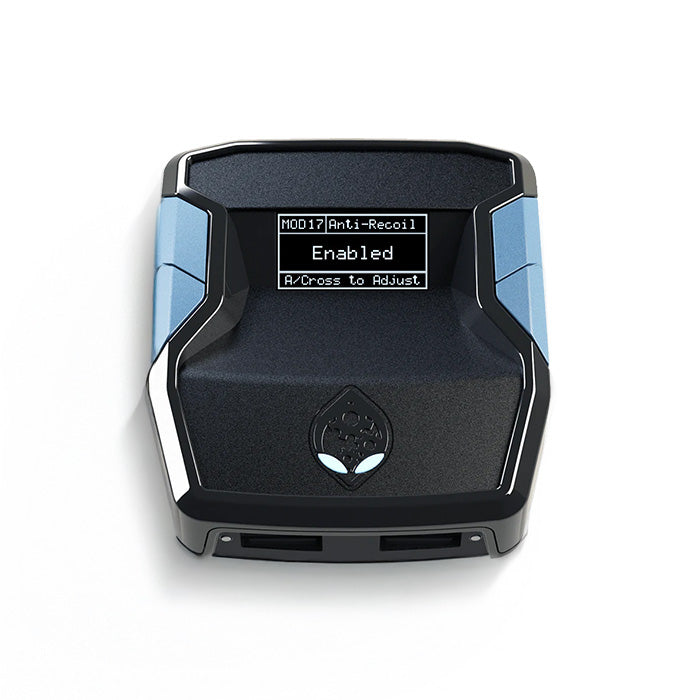
Edge controller onlyWith the DualSense Edge, sensitivity and deadzone of the right stick must be set to Standard, otherwise anti-recoil won't work correctly (the GamePack controls the curves).
These settings only appear when the Edge controller is connected to the PS5.
-
Settings › Accessories
-
DualSense Edge Wireless Controller › Custom Profiles
-
Create a new profile, name it "BEAM2.0" and confirm with OK.
-
Set in the profile:
Right Stick Sensitivity Curve › Standard · Curve Adjustment › 0 · Deadzone › 0 %

Common questions & possible problems
FAQThe most common questions from our support, answered briefly.
Do I have to update the firmware?
Do I really have to repeat the bypass after every restart?
There's a new PS5 system update. Should I install it?
I set everything up as described, but the controls don't respond correctly when I activate a GamePack.
The Cronus Zen isn't recognized on the PC.
Zen Studio Live must be opened in a Chromium browser such as Google Chrome or Microsoft Edge. Safari and Firefox don't support the required USB connection.
Also make sure you use the right USB port on the Zen: for firmware updates you connect the top port and activate bootloader mode by holding the small button on the back for 2 seconds until the display shows Bootloader. For programming on the other hand, you connect the right port, and bootloader mode stays off.
Expand your possibilities.
Get your Cronus Zen.
Use official GamePacks and thousands of free mods to optimize your gameplay. Whether controller or mouse & keyboard, on any console. With the Zen, you get the most out of your setup.